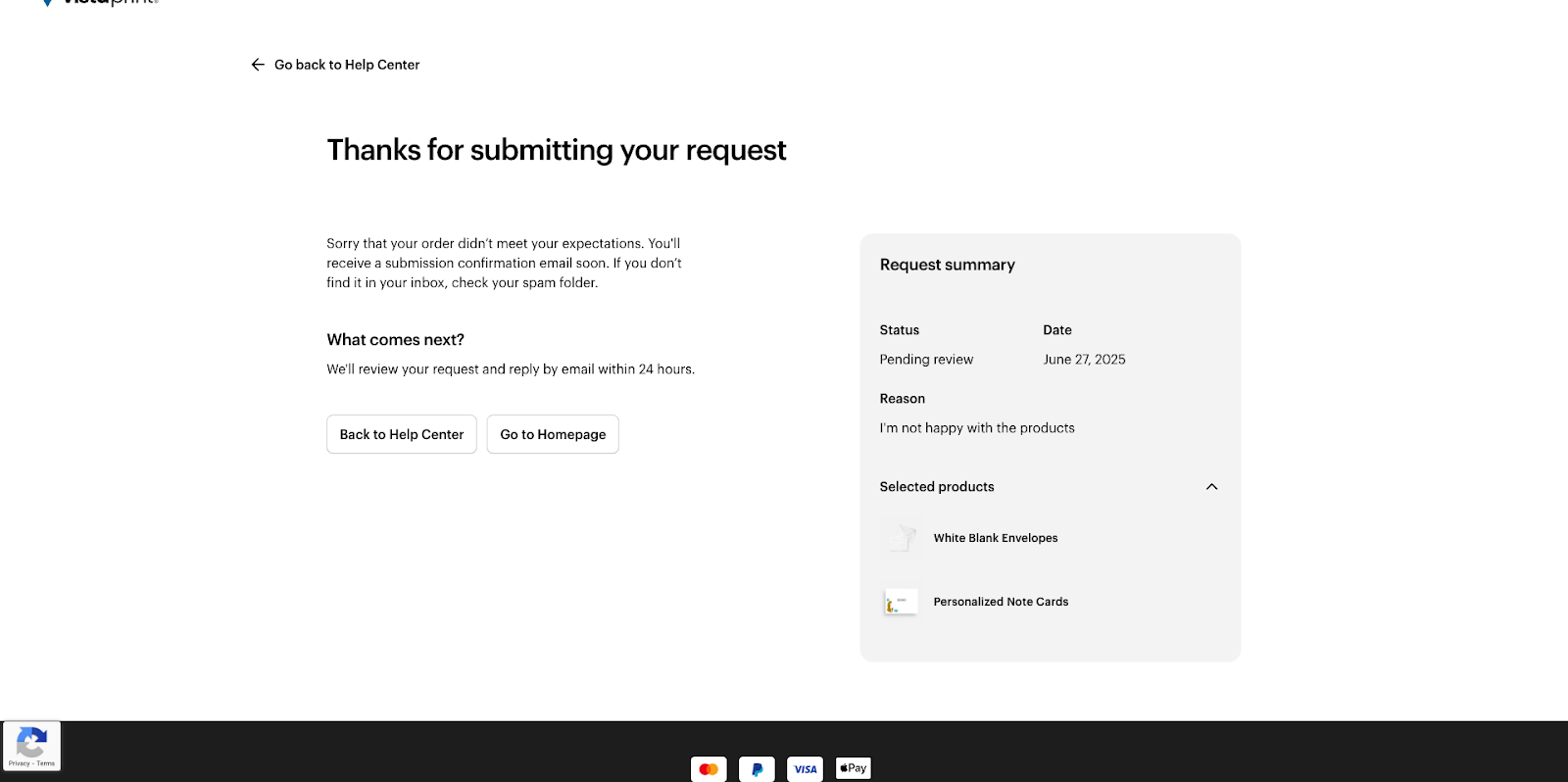
To get help for your order, follow these steps:
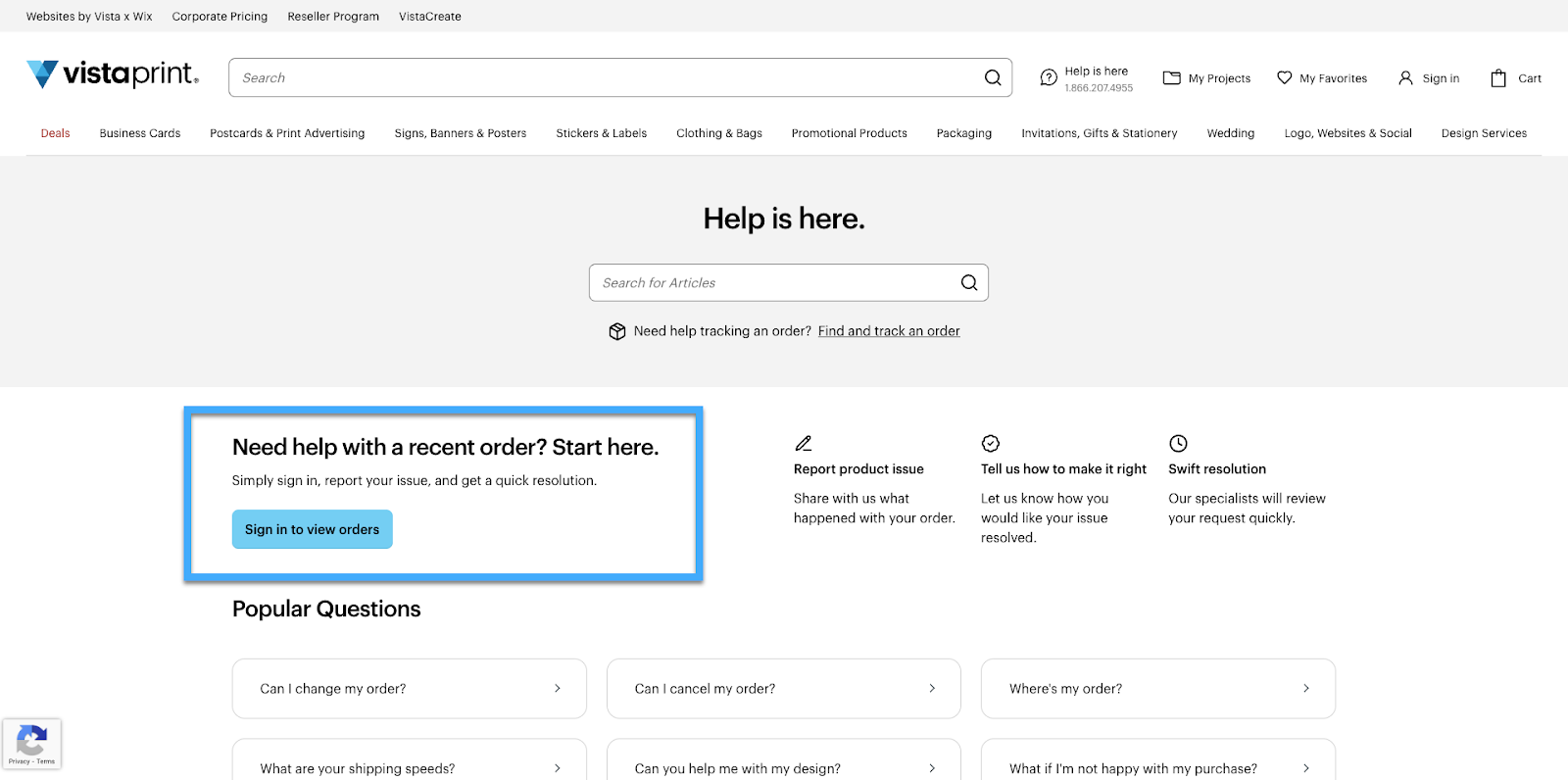
Visit our Help Centre
On the Help Centre front page, you'll find the option ‘Need help with a recent order? Start here’.
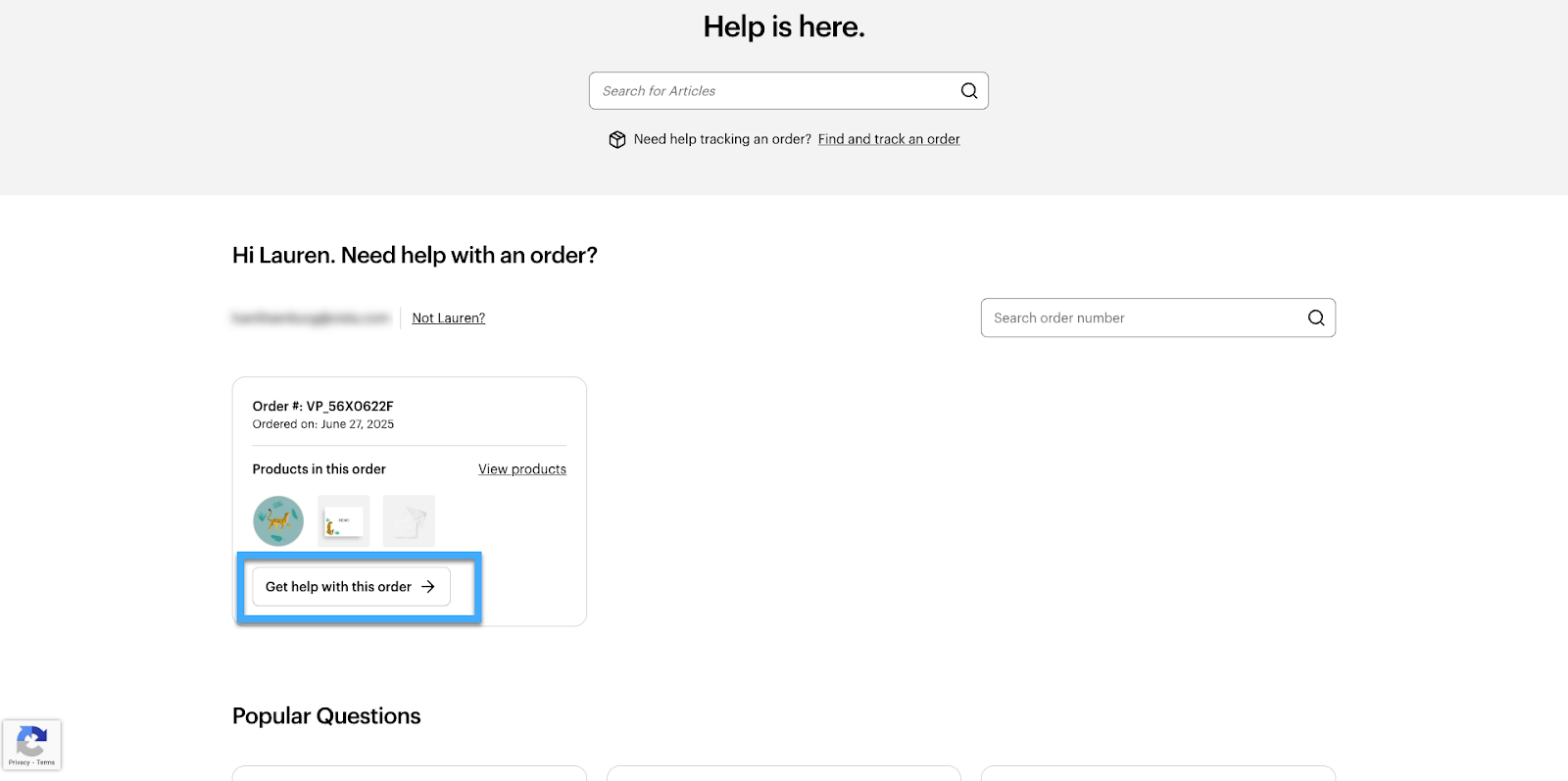
Select an order
We'll show you a list of all your recent orders. Select an order from the list and choose ‘Get help with this order’.
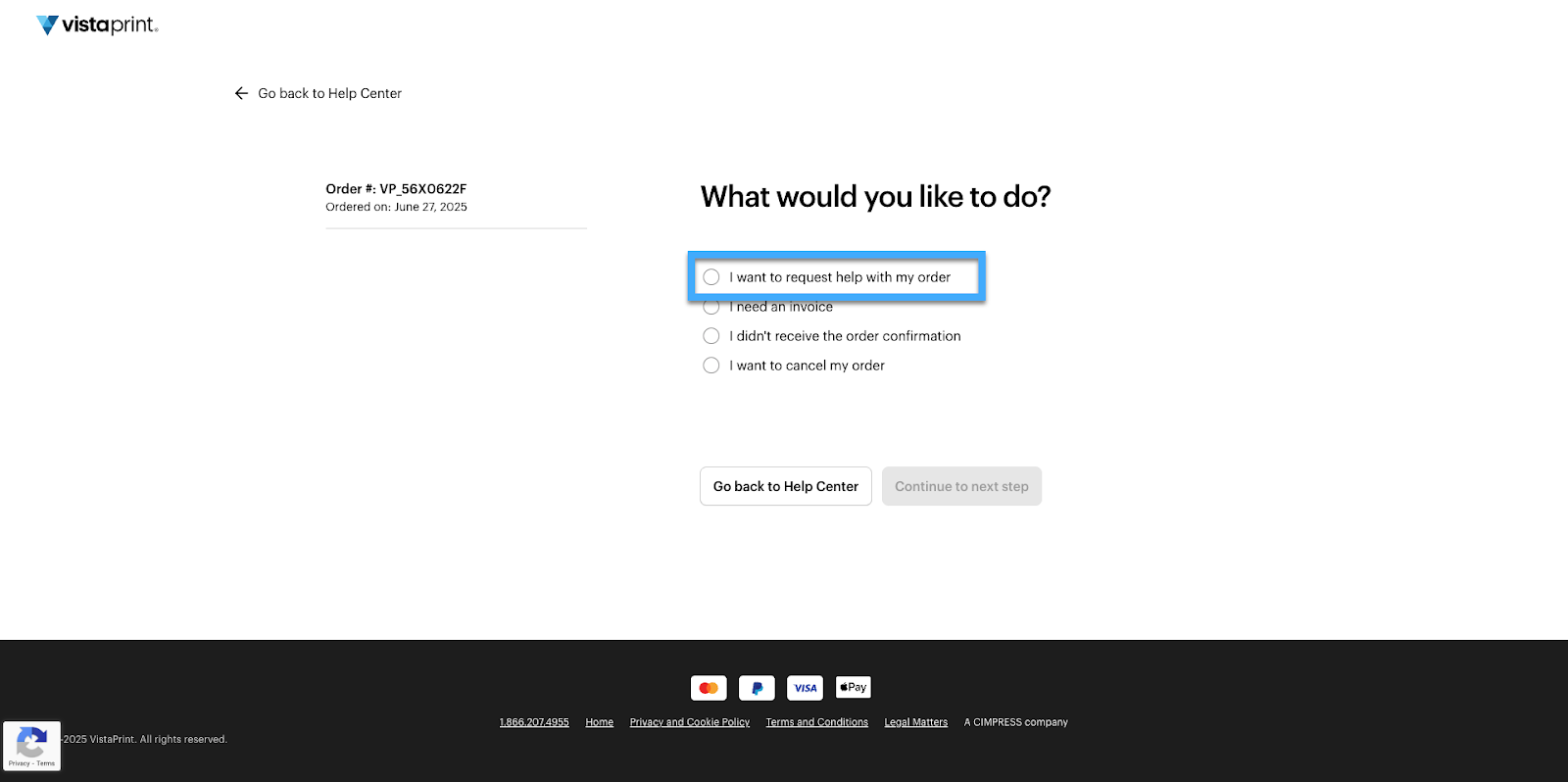
Select an action
From the list of available actions, choose ‘I want to request help with my order’.
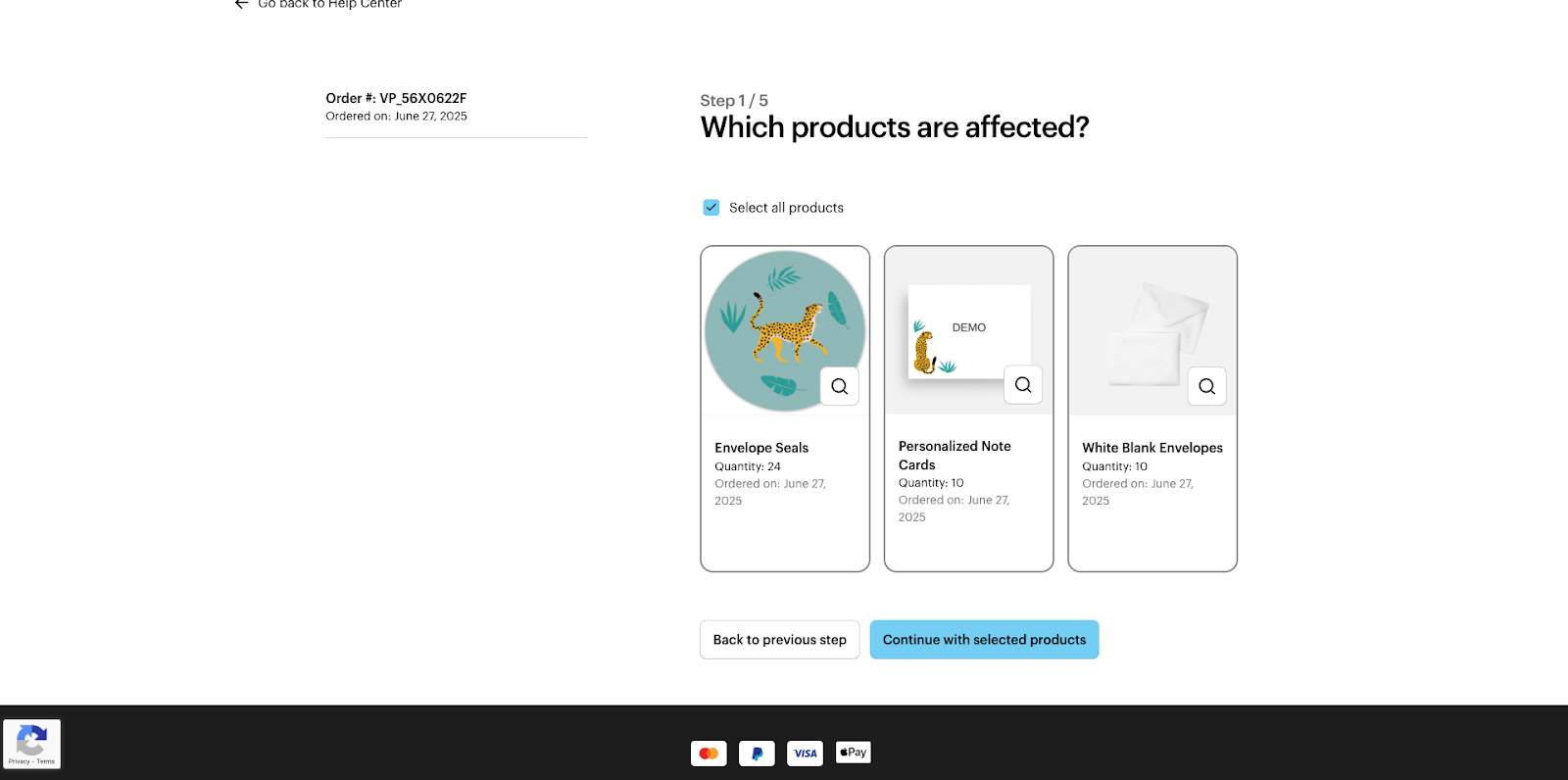
Select the products
Select which products in your order are affected by the issue. If the entire order is affected, choose ‘Select all products’.
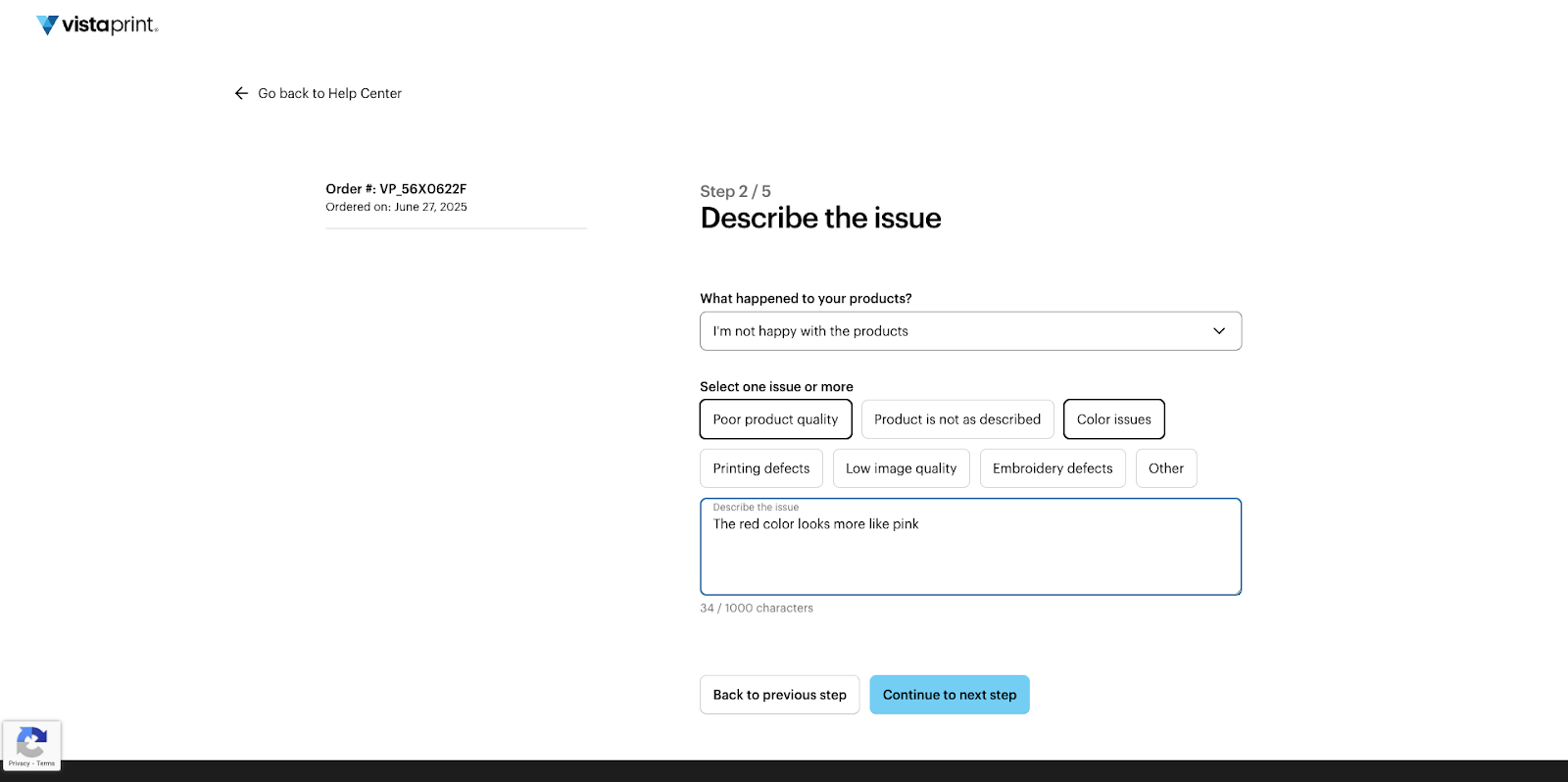
Select an issue
Select the option from the drop-down menu that best describes the problem. Depending on your selection, you may be able to choose a more specific issue. You can also select several issues at once and provide a detailed description.
Upload pictures
Upload up to 4 pictures showing the product and the issue. Pictures can help us determine what went wrong so we can fix the issue quicker.
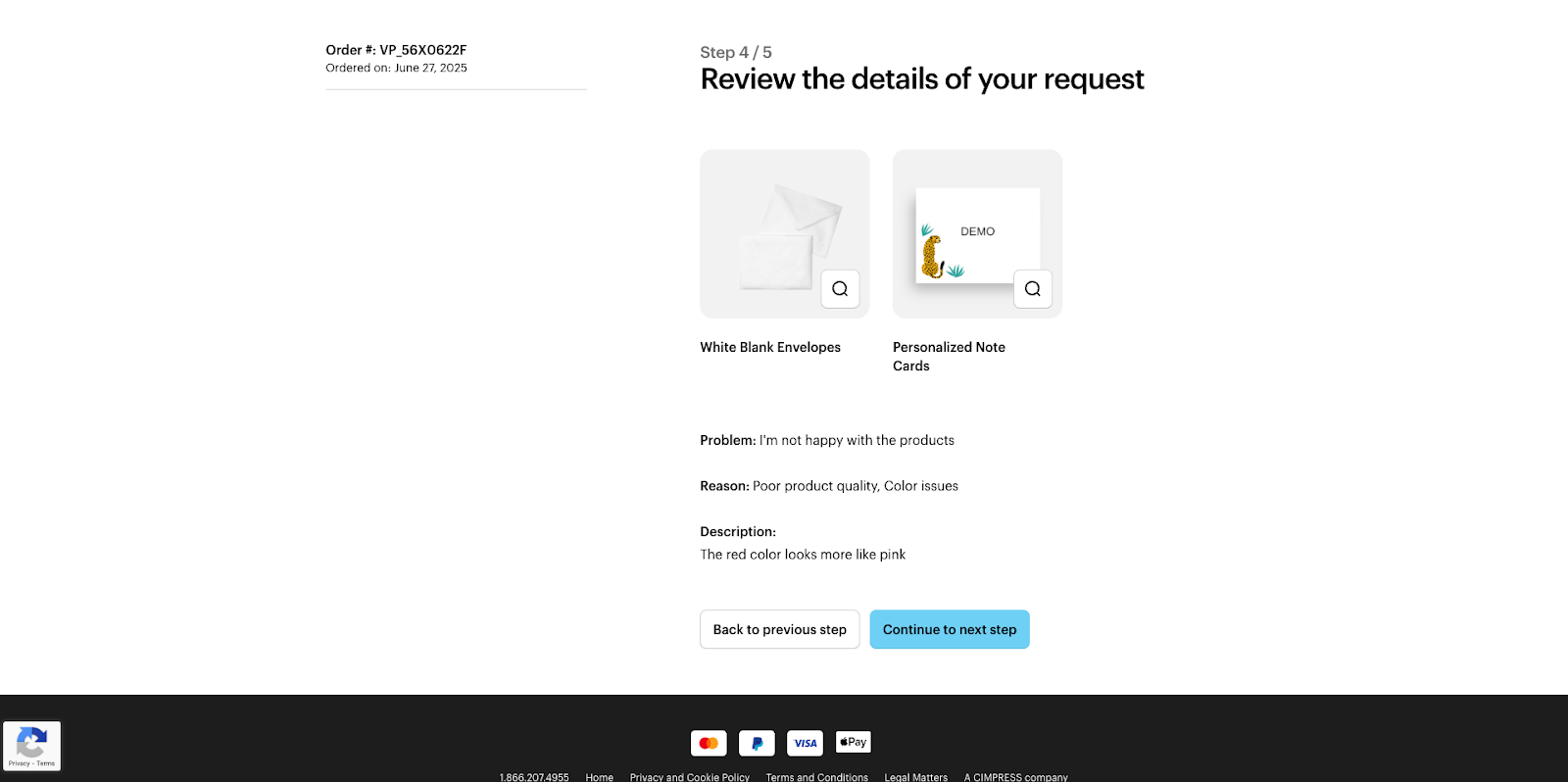
Review the details
Check that all the details of your request are correct. When you're ready, select ‘Continue to next step’.
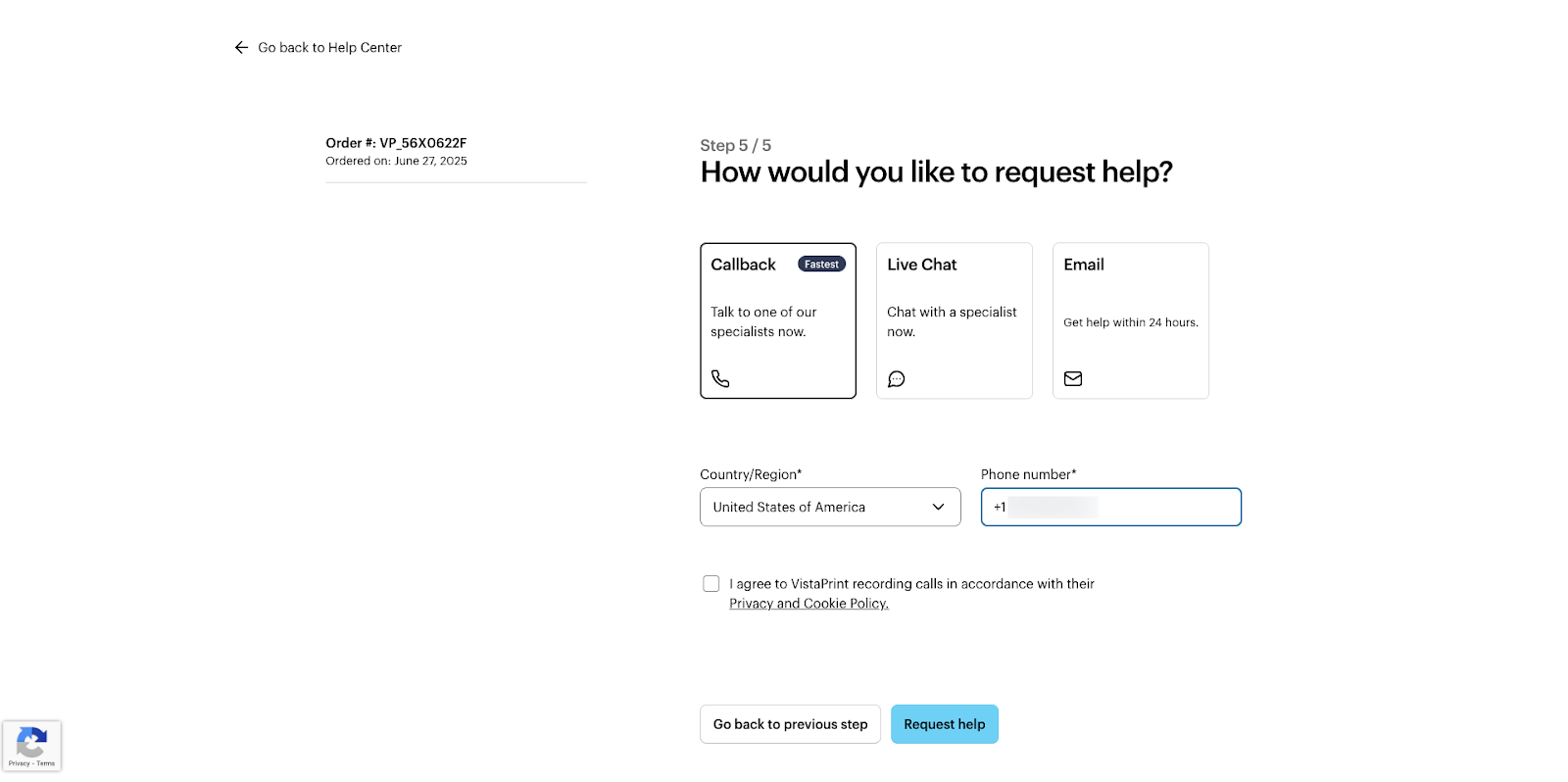
Choose a contact method
Choose how you would like our Customer Support team to contact you. For example, you can request a callback, start a chat or receive an email.
Wait for a response
You have now submitted your request. We'll send you a confirmation email to confirm we received it. Our team will review the details you provided and get back to you as soon as possible.